Sending site progress videos over Zalo: an iPhone guide for site engineers
Published 1 October 2026 · 7 min read
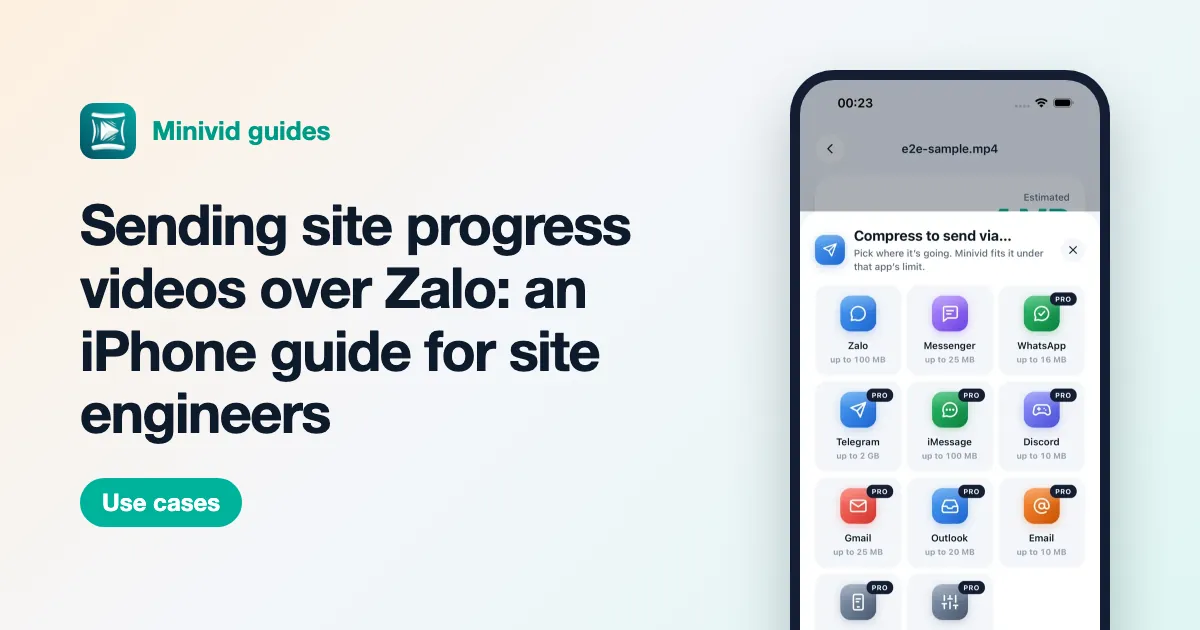
Shoot short progress clips from the same spots every day, trim each to the part that shows the work, and send a copy that fits Zalo’s in-chat video limit — widely reported as about 100 MB — so the office can watch it straight away. Send the full-quality original as a file only when someone needs it, and move the originals off the phone each week so it never runs out of space on site.
Everything below works with the tools already on an iPhone. The last sections show where an app shortens the routine.
How do I shoot progress videos that are easy to compare?
A progress video is useful when today’s clip can be set next to last week’s. Consistency matters more than resolution.
- 1Pick a few fixed spots — the site entrance, each floor’s stair landing, the façade from across the road — and film from the same place each time.
- 2Hold the phone horizontally and pan slowly. Fast pans blur on a phone screen and compress badly.
- 3Keep each clip to 20–60 seconds and say the date, area and grid line at the start. The sound is the label.
- 4Set Settings › Camera › Record Video to 1080p at 30 fps. 4K adds a lot of size and little that the office will see on a phone.
Take photos as well for details: rebar spacing, a crack, a label on delivered material. A photo of a detail is clearer than a frame from a video.
How do I trim a clip before sending it?
- 1Open the clip in Photos and tap Edit.
- 2Drag the yellow handles to cut the walking and fumbling at the start and end.
- 3Tap Done, then Save Video as New Clip, so the full original stays on the phone for the record.
Trimming is the quickest way to make a clip smaller, and it costs no quality.
How big a video can I send over Zalo?
Zalo does not publish official limits. Vietnamese tech sites widely report about 100 MB for a video sent in a chat from the phone, which Zalo also re-compresses, and about 1 GB for a video sent as a file. Zalo PC is reported to take larger files than the phone app.
- For a quick daily update the office will watch on a phone: keep it under 100 MB and send it as a video, so it plays in the chat.
- For a record the client or consultant may need in full quality: send it as a file. In Photos tap Share › Save to Files, then in Zalo use the attach button and choose the file option instead of photos or videos.
- For a long walkthrough that is still too big: send it from Zalo PC, or share an iCloud or cloud drive link.
If a clip is still over the in-chat limit after trimming, lower its resolution with the Encode Media action in Shortcuts or with Share › Options in iMovie, then check the new size in Photos (tap the i button).
What if there is no signal on site?
Basements, tunnels and new concrete cores often have no signal. Film, trim and save the clips as usual; Zalo can only send once you are back in coverage, so do the trimming and sizing while you wait, and the sending is quick when you surface. Smaller files also go through a weak 4G connection far more reliably than a 300 MB original.
How do I keep originals without filling the phone?
Progress footage piles up fast, and some of it may be needed later as evidence. Do this once a week:
- 1Copy the week’s originals to the company drive or a computer — by cable, AirDrop to a Mac, or the Files app.
- 2Check the copy opens, then delete the originals from Photos.
- 3Open Albums › Recently Deleted and delete them there too. Until you do, iOS keeps them for 30 days and the space does not come back.
Name or date the folders by week and area, so the clip for a dispute about the third-floor slab can be found in a minute.
How do I find a drawing or code I took a screenshot of?
Engineers screenshot everything: a drawing revision, a material code, a delivery note, a meeting time. In Photos, the search field finds text inside photos and screenshots on recent iOS versions — type a word you remember from it, such as a grid line or a code.
Where does Minivid help?
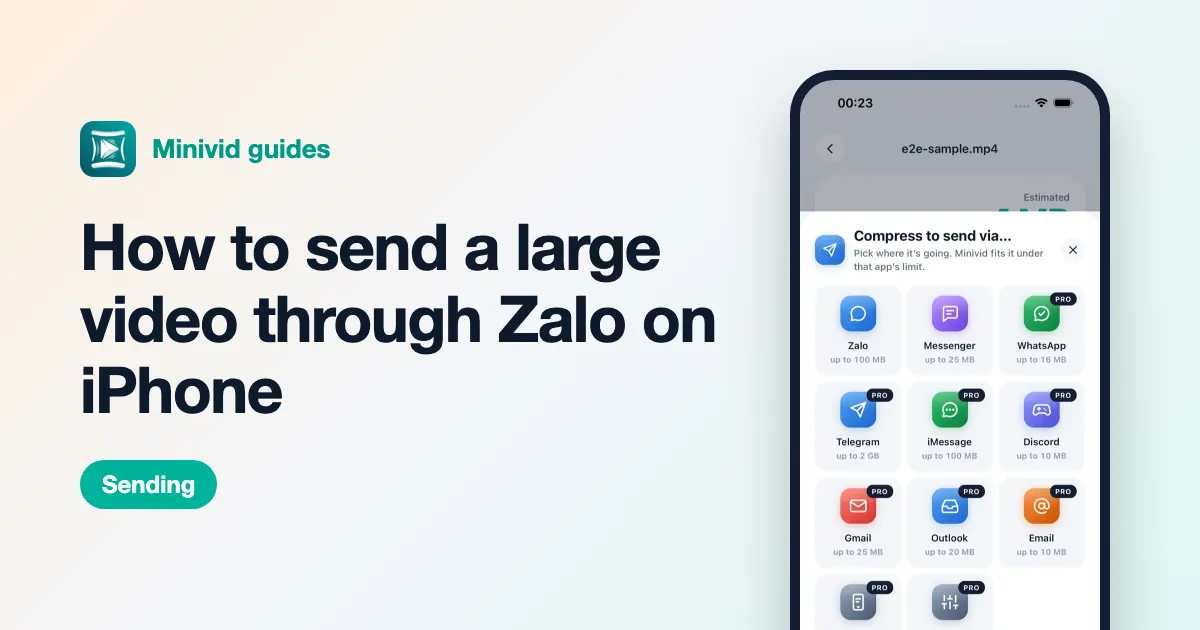
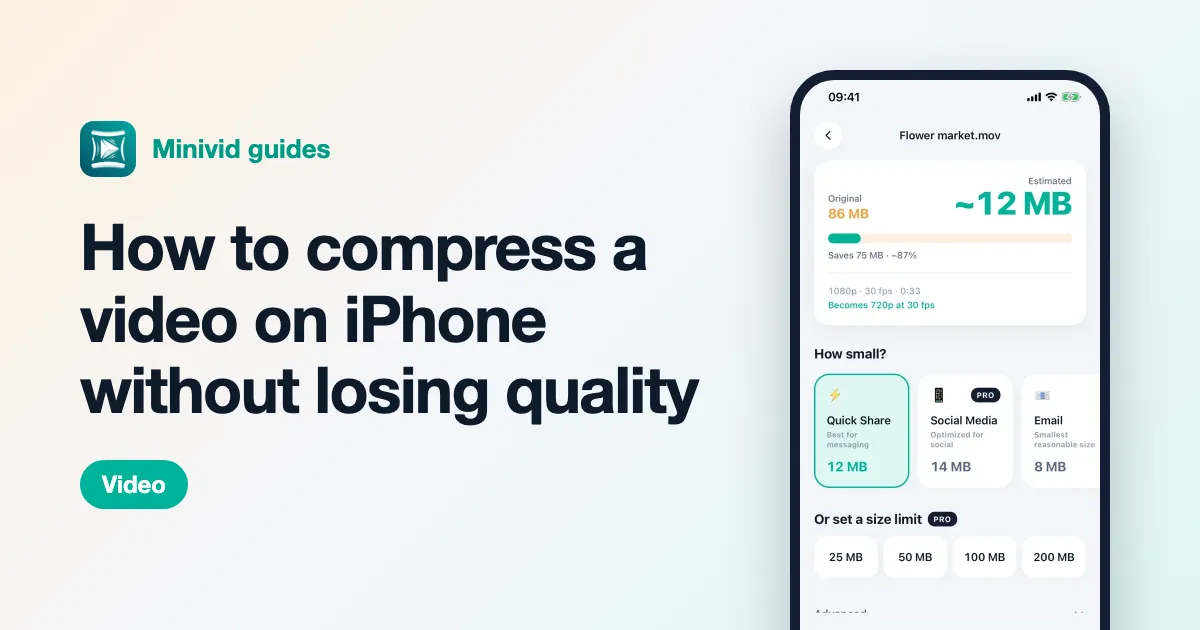
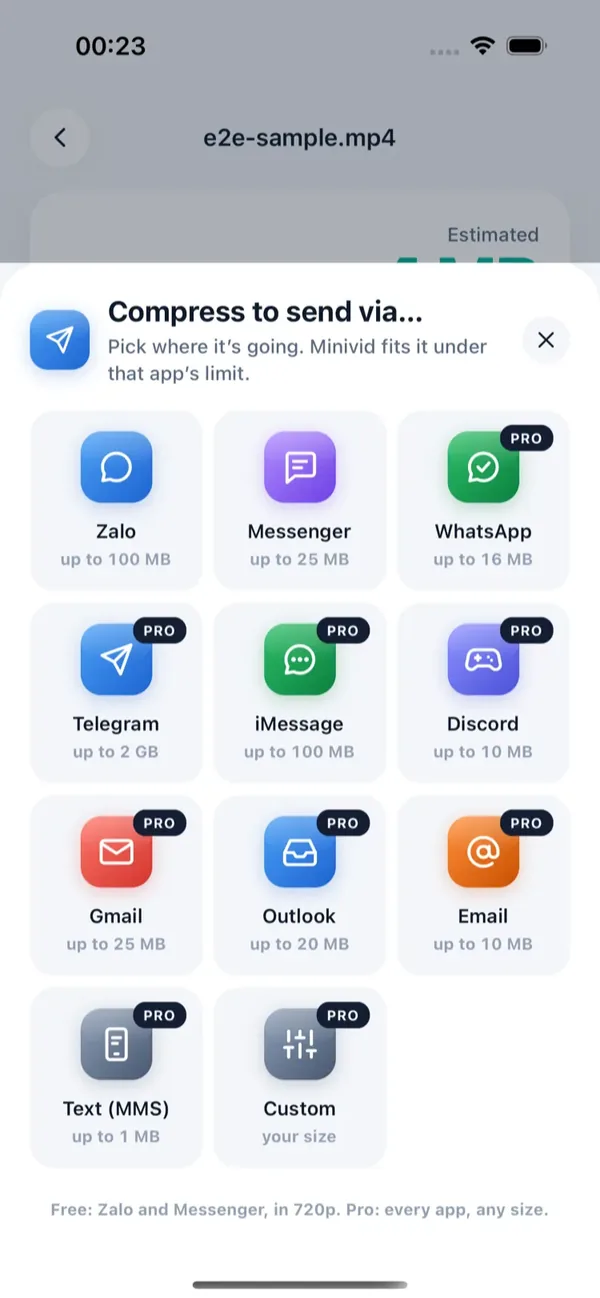
Minivid makes the daily send one step. Pick a clip, trim it if needed, tap Send via… and choose Zalo: Minivid shows the size before it starts, compresses the clip on the phone to fit Zalo’s 100 MB in-chat limit, and opens the share sheet so you pick the group and send. That is free, at 720p, for clips up to 100 MB. Compressing works with no signal at all, since nothing is uploaded — Minivid never signs in to Zalo.
What else does Minivid do for site work?
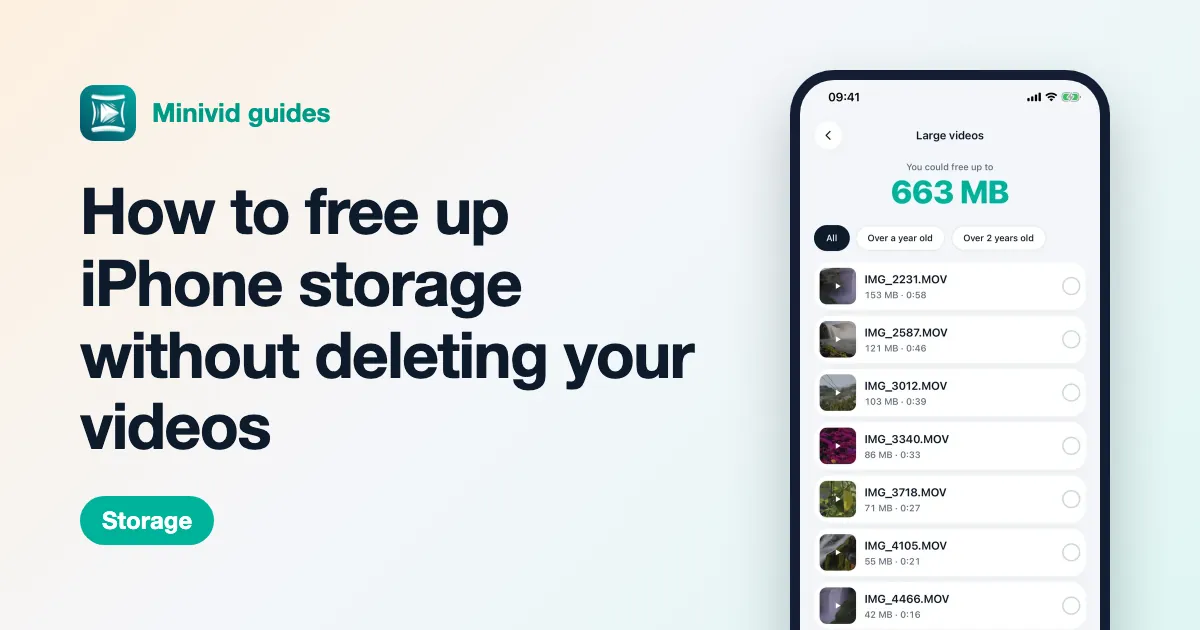
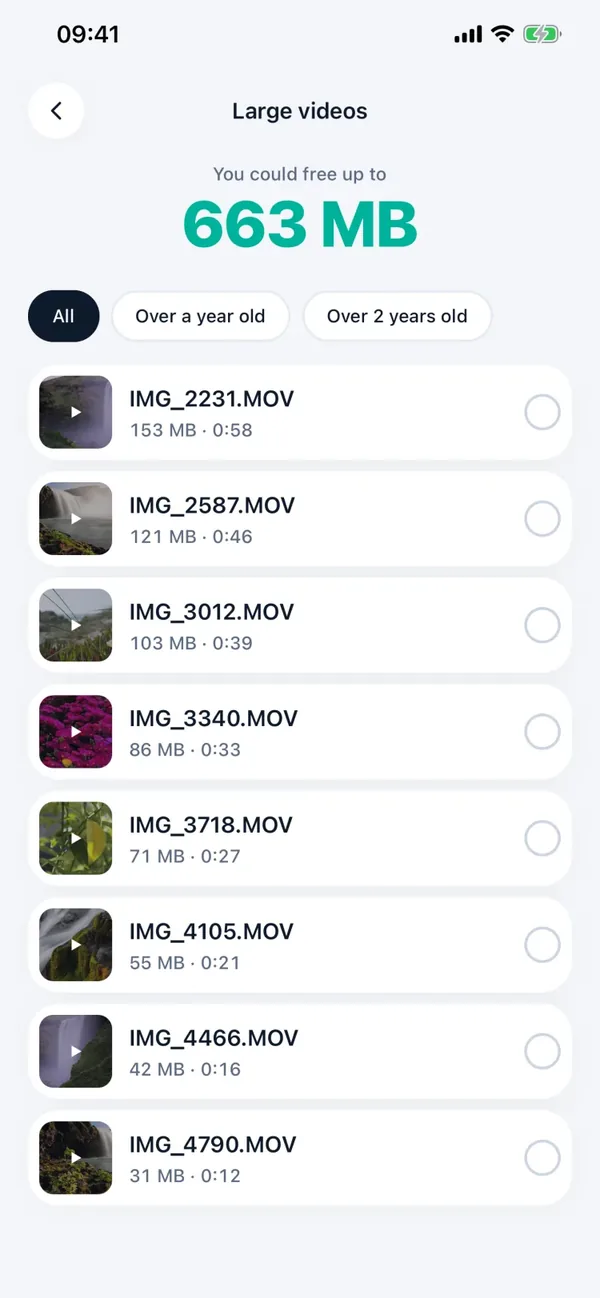
- Large videos: every video on the phone ranked by size, with filters for ones over a year or two old, so last quarter’s walkthroughs are easy to find, compress or delete.
- Replace original: after compressing, the smaller copy keeps the original’s date and location, so it still sits on the right day in Photos; iOS asks before the original is deleted.
- Screenshot search: Minivid reads your screenshots on the phone so a code or a drawing number is one search away, and old ones can be cleared in a batch. Free.
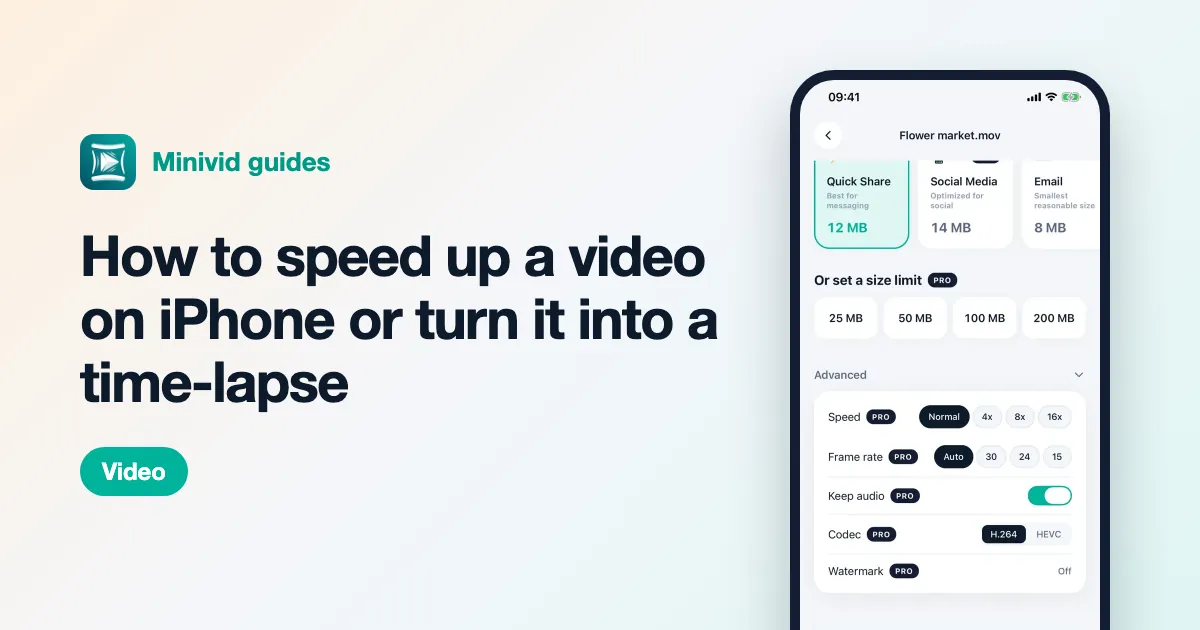
- With Pro: time-lapse at 4x, 8x or 16x turns a long fixed-camera clip of a pour into a short one (without sound), batch compression clears a week of footage in one go, and 1080p or 4K output keeps more detail.
Minivid makes copies; it never changes the original video. For records that may matter in a dispute, keep the originals on the company drive and send compressed copies for everyday updates.
Want to know the size before you compress?
Minivid compresses video on your iPhone and shows the final size before it starts. Your videos are never uploaded.