How to send a large video through Zalo on iPhone
Published 1 October 2026 · 6 min read
To send a large video through Zalo on iPhone, either send it as a file (the attach menu’s document option) instead of as a video, which accepts much larger files and does not re-compress them, or make the video smaller than Zalo’s chat limit, which Vietnamese tech press puts at around 100 MB. For files larger still, Zalo PC or a cloud link is the way out.
Zalo does not publish an official figure, so the numbers below are the ones widely reported by Vietnamese tech sites and can change. This guide explains what happens to a big video in Zalo, then walks through each option in the order worth trying.
What is Zalo’s video limit on iPhone?
Zalo treats a video in two different ways, depending on how you send it:
- As a video (from the photo picker in a chat): reported at around 100 MB per video. Zalo also re-compresses it, so the person receives a softer, lower-resolution copy than the one on your phone.
- As a file (the document or file option in the attach menu): reported at up to about 1 GB. The video arrives untouched, but the recipient has to download it before playing it.
Zalo PC is often reported to allow larger files than the phone app. Because none of these numbers come from Zalo itself, treat them as a guide, and if a send fails, assume you have hit a limit rather than a network glitch.
How do I check how big the video is?
- 1Open the video in the Photos app.
- 2Tap the info button (the i in a circle), or swipe up on the video.
- 3The panel shows the resolution, frame rate and file size.
A minute of 4K video recorded on a recent iPhone usually weighs several hundred megabytes, so a clip that feels short can still be well past 100 MB.
How do I send a video to Zalo as a file?
This keeps the original quality and accepts much larger videos. The exact menu names change between Zalo versions, but the pattern stays the same.
- 1In Photos, open the video, tap Share, then Save to Files, and pick a folder such as On My iPhone.
- 2Open the Zalo chat and tap the more or attach button next to the message box.
- 3Choose the document or file option, not photos or videos.
- 4Browse to the folder in Files, pick the video and send it.
The recipient sees a file instead of a playable video in the chat. Tell them to tap it and wait for the download; on a slow connection a few hundred megabytes can take a while.
When should I use Zalo PC or a link instead?
- Zalo PC: if the video is over the phone app’s file limit, AirDrop it to a Mac or copy it to a computer, then send it from Zalo PC.
- An iCloud link: with iCloud Photos on, open the video, tap Share, then Copy iCloud Link, and paste the link into the chat. The link expires after 30 days.
- A cloud drive link: upload to Google Drive, OneDrive or Dropbox and paste the share link. This works for any size, but the video now lives on that service, so remove the link later if it is personal.
A link is also the better choice for a group: everyone opens the same copy instead of each phone downloading a large attachment.
How do I make the video small enough to send as a normal video?
If you want the video to play right inside the chat, make it fit under the limit. Zalo will shrink it anyway, so sending a 4K original only wastes upload time.
- 1Trim it: in Photos, tap Edit, drag the yellow handles, tap Done, then Save Video as New Clip. Half the length is roughly half the size.
- 2Lower the resolution: 720p looks the same as 4K on a phone screen in a chat. The Shortcuts app’s Encode Media action, or iMovie’s Share › Options, can export a smaller copy on the phone.
- 3Check the new size in Photos before you send it.
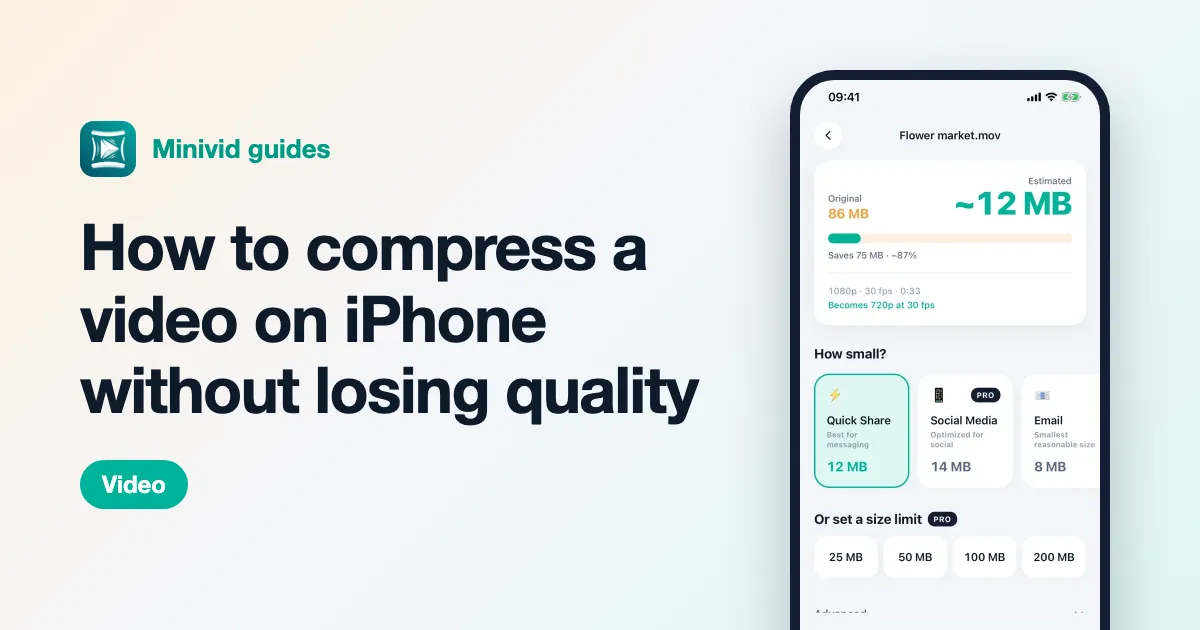
The built-in tools do not tell you the final size in advance, so a long clip can take two or three attempts to land under 100 MB. Our guide to compressing a video without losing quality covers the settings in detail.
Which option should I pick?
- It should play instantly in the chat: compress it under the limit and send it as a video.
- The quality matters, for example footage someone will edit: send it as a file.
- It is bigger than the phone app accepts: Zalo PC, or a link.
- Several people need it: a link.
Where Minivid helps
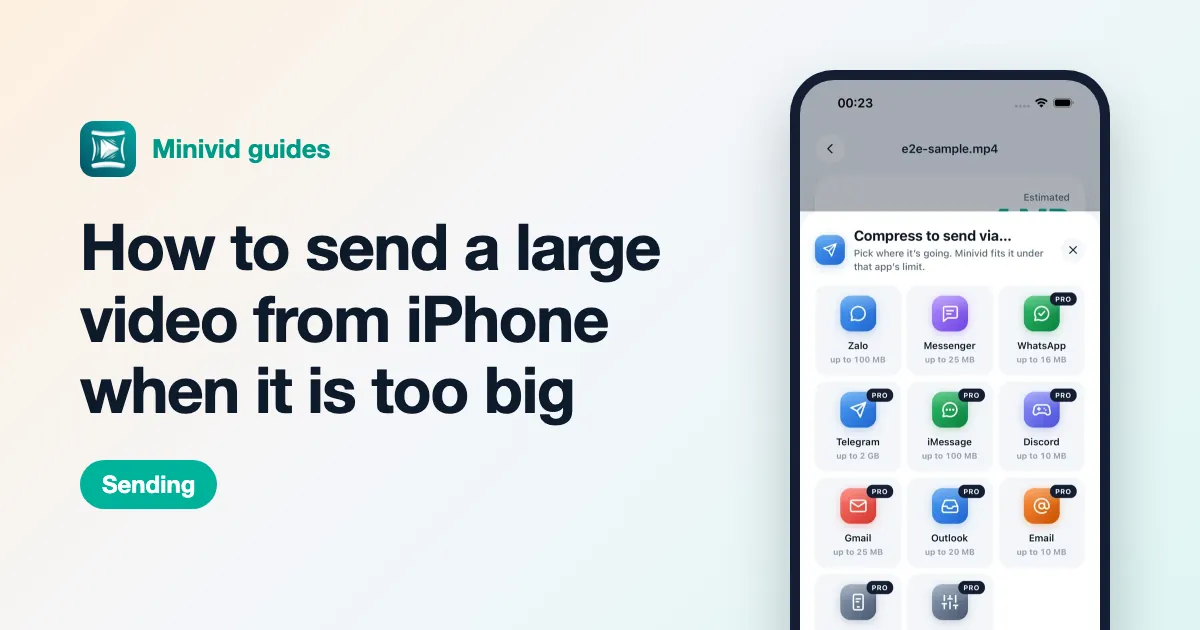
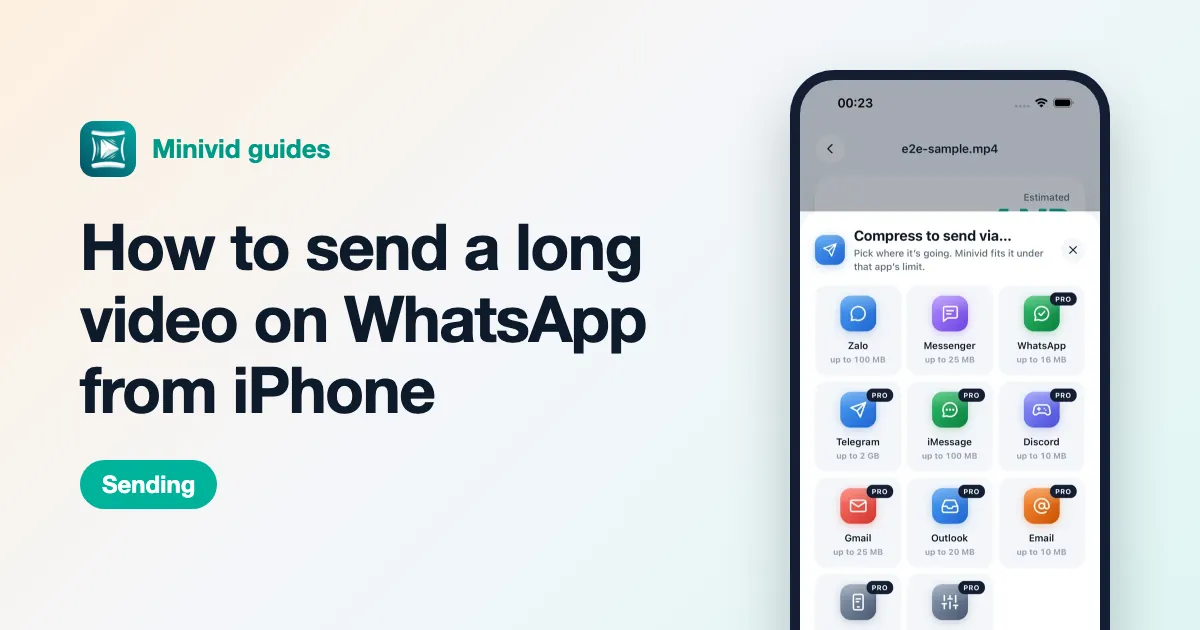
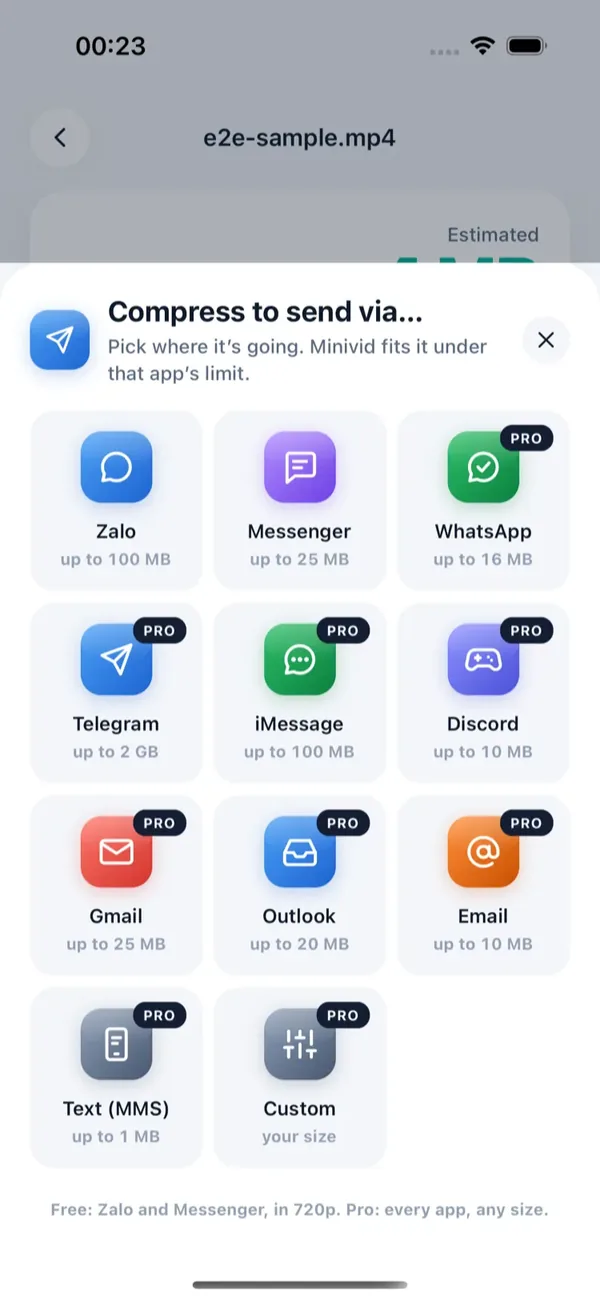
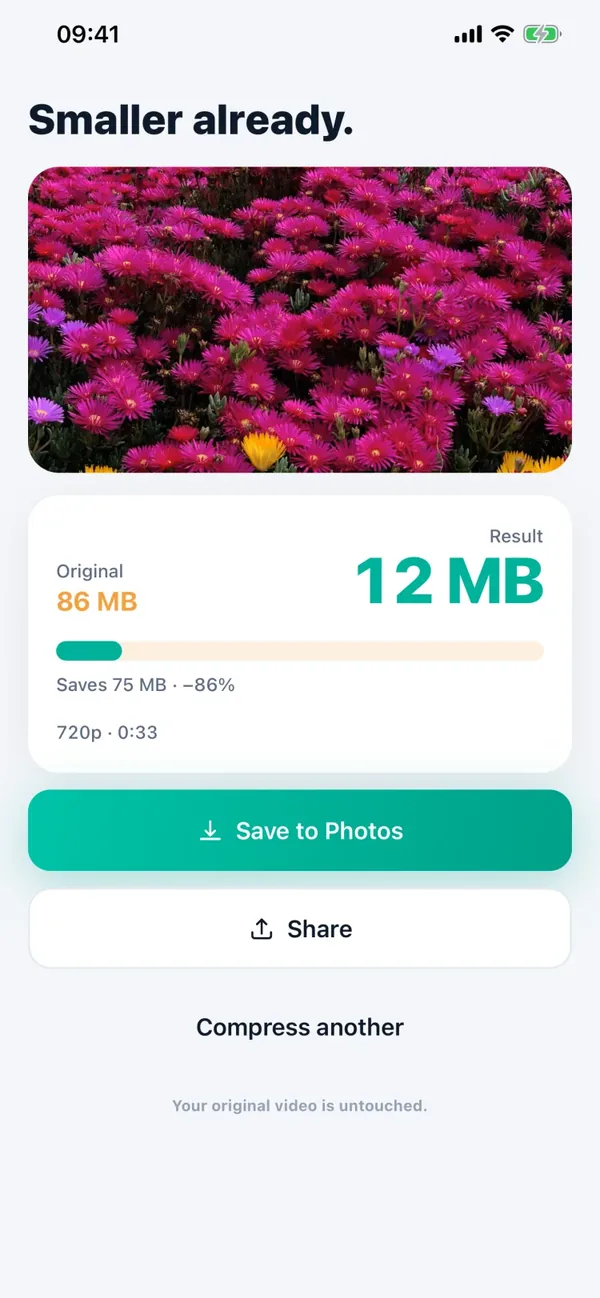
Minivid’s Send via… feature handles the compress-to-fit case. Pick the video, tap Send via… and choose Zalo: Minivid shows the size the result will have before it encodes, compresses it on the phone to fit under Zalo’s 100 MB chat limit, and opens the share sheet so you can pick Zalo and send it.
Send via Zalo is free at 720p. The free tier works on videos up to 100 MB; larger originals, other destinations and higher resolutions need Pro. Minivid never signs in to Zalo or uploads your video anywhere — it only writes a smaller copy on your iPhone, and your original is left untouched. If a clip is still too long, trim it first and watch the estimate follow.
Want to know the size before you compress?
Minivid compresses video on your iPhone and shows the final size before it starts. Your videos are never uploaded.