How to free up iPhone storage without deleting your videos
Published 1 October 2026 · 7 min read
When an iPhone says its storage is almost full, the usual advice is to delete things. But the biggest item on most phones is the photo library, and the heaviest part of it is video — the clips people least want to lose.
You do not have to choose between your memories and a working phone. This guide shows how to see where the space really went, what to clear first because it costs nothing, and how to keep old videos at a fraction of their size.
Step 1: See what is actually using the space
Open Settings, tap General, then iPhone Storage. After a moment you get a bar showing how much each category uses and a list of apps sorted by size. Tapping an app shows the app itself and its documents and data separately.
If Photos is near the top, video is almost always the reason. A single minute of 4K video can take more room than hundreds of photos.
The same screen also lists recommendations, such as reviewing large attachments in Messages. They are worth a look before anything else.
Step 2: Empty Recently Deleted
Deleted photos and videos are not gone immediately. iOS keeps them in Recently Deleted for 30 days, and they keep using storage the whole time. This catches out a lot of people who delete a pile of videos and see no change.
- 1Open Photos, then go to Albums and scroll to Utilities (on newer iOS versions it may sit under a Collections or Utilities heading).
- 2Open Recently Deleted and unlock it with Face ID or your passcode.
- 3Tap Select, then Delete All — only once you are sure nothing in there is needed.
Step 3: Clear the easy wins
These usually free space without losing anything you care about:
- Duplicates: Photos has a Duplicates album under Utilities that groups identical copies so you can merge them.
- Screen recordings and old screenshots: under Media Types in Albums. Many were useful for a day and never again.
- Message attachments: in iPhone Storage, tap Messages and review large attachments; videos sent and received in chats pile up for years.
- Apps you never open: Offload App removes the app but keeps its data, so you can reinstall it later and carry on.
Step 4: Let iCloud keep the full-size originals
If you pay for enough iCloud storage, go to Settings, tap your name, then iCloud, Photos, and turn on Optimize iPhone Storage. The full-resolution photos and videos stay in iCloud and the phone keeps smaller versions, downloading the originals when you open them. It frees a lot of space but depends on having enough iCloud storage and a connection when you want the original.
Step 5: Find your largest videos
In Photos, open Albums, then Videos under Media Types. Long clips show their duration in the corner, and length is a good proxy for size. Old videos are the best candidates: a two-year-old 4K clip of a school concert is something you want to keep, but you will rarely need it at 4K quality on a phone.
Make a short list of the long, older clips. Those are where shrinking pays off most.
Step 6: Shrink old videos instead of deleting them
Re-encoding a video at 1080p or 720p, often with HEVC, typically makes it several times smaller while it still looks the same on a phone screen. You can do it with built-in tools:
- The Shortcuts app’s Encode Media action can save a smaller copy of a video to your library.
- iMovie can export a project at a lower resolution through Share, then Options.
Two cautions before you delete the big original:
- Watch the new copy full screen first.
- A re-exported copy may not carry the original’s date and location, so it can land on today’s date in your library instead of where it belongs. Check where it appears in Photos before removing the original.
Then delete the original and, if you want the space now, empty Recently Deleted again.
Step 7: Stop the problem from coming back
- In Settings, Camera, Formats, choose High Efficiency so new photos and videos use the smaller HEIF and HEVC formats.
- In Settings, Camera, Record Video, use 1080p at 30 fps for everyday clips and switch to 4K only when you need it.
- If you never use the motion in Live Photos, turn Live Photo off in the Camera app and keep it off in Settings, Camera, Preserve Settings.
- Check iPhone Storage every few months, before it becomes urgent.
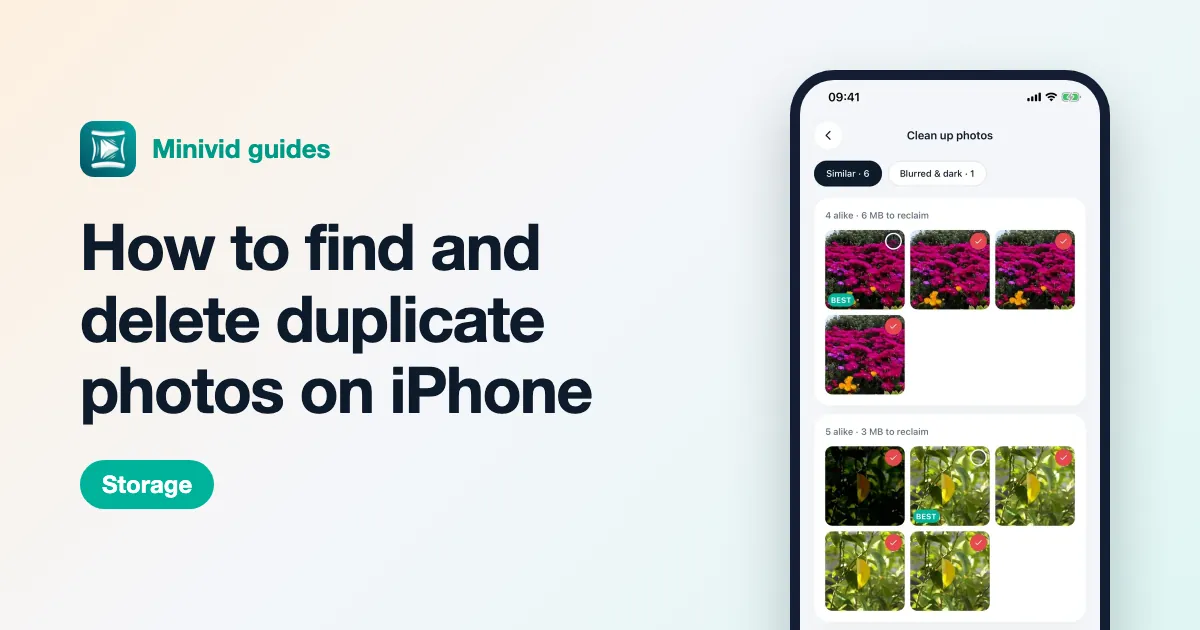
Where Minivid helps
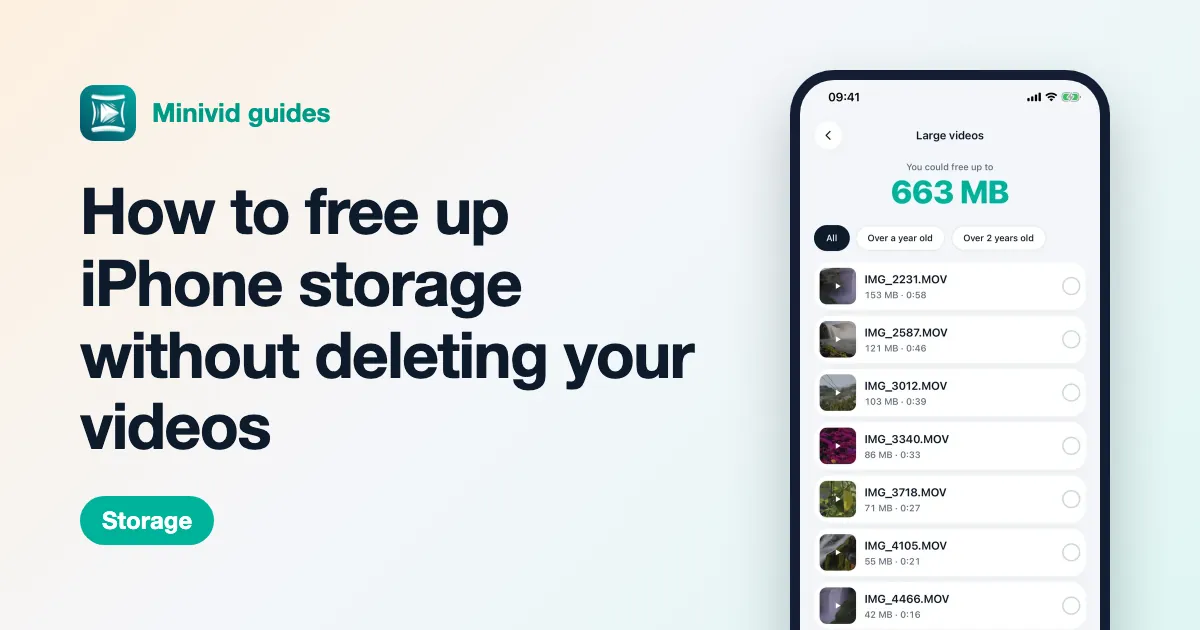
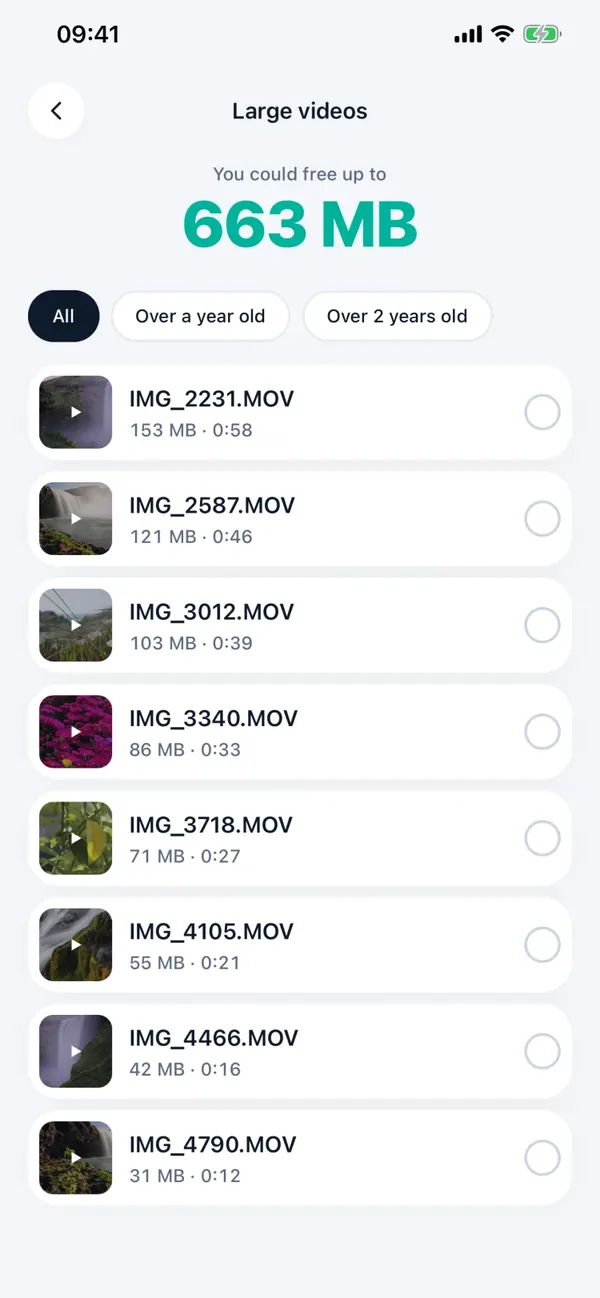
Minivid puts the video steps in one app, all on the device. Its Large videos screen lists every video on your phone by size, with the total you could get back, and can filter to the ones over a year or two old.
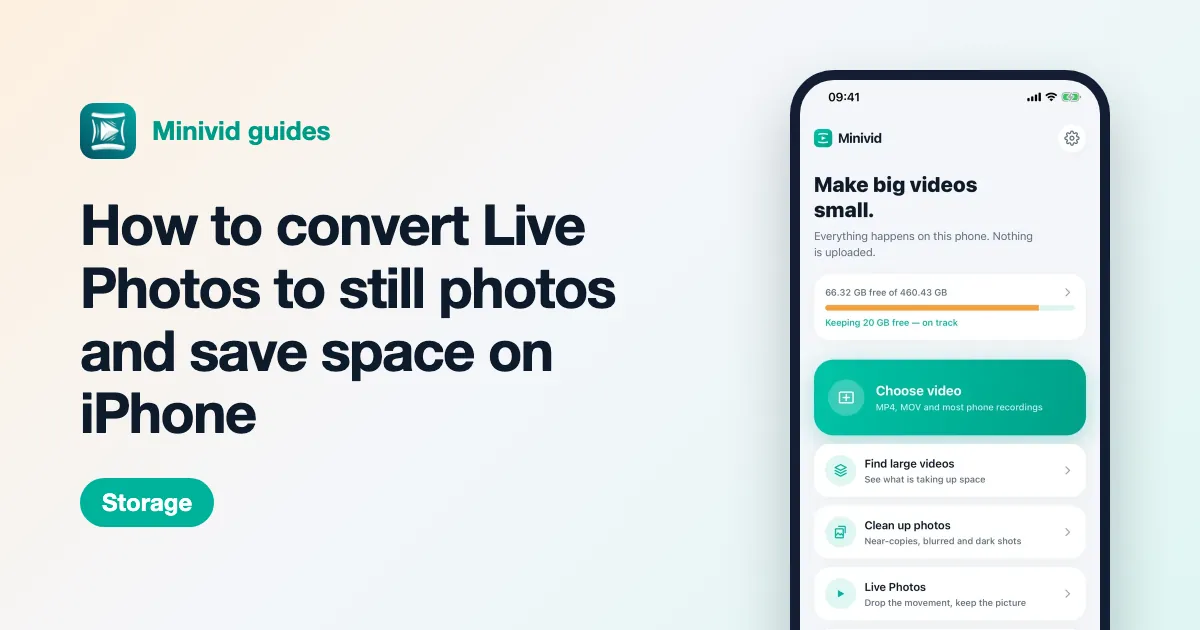
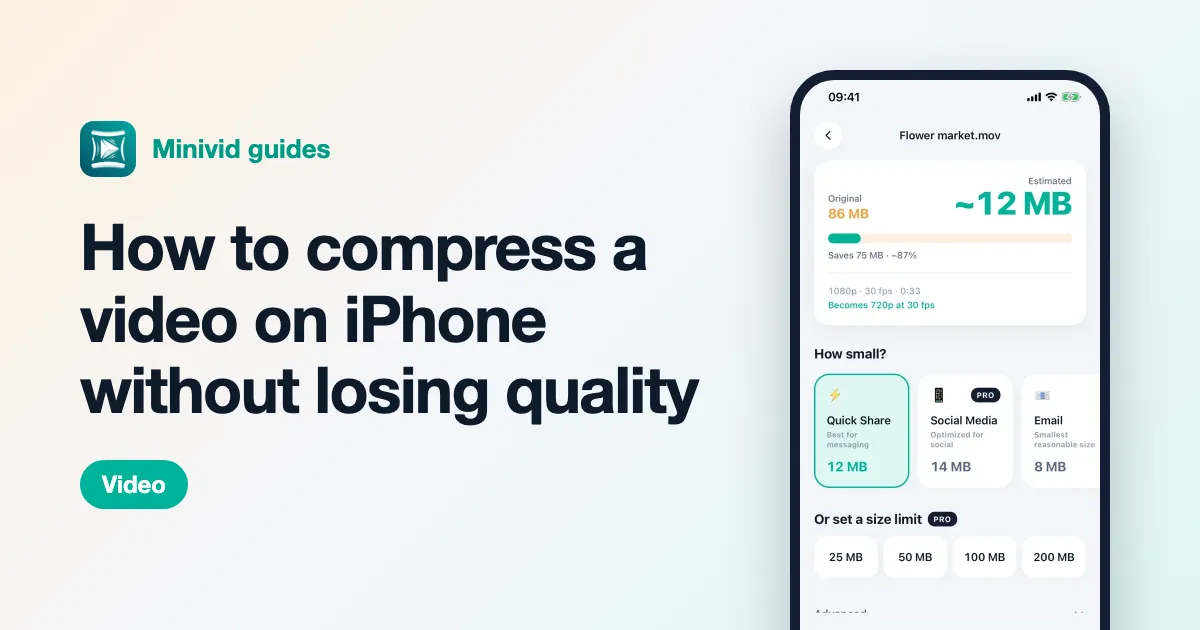
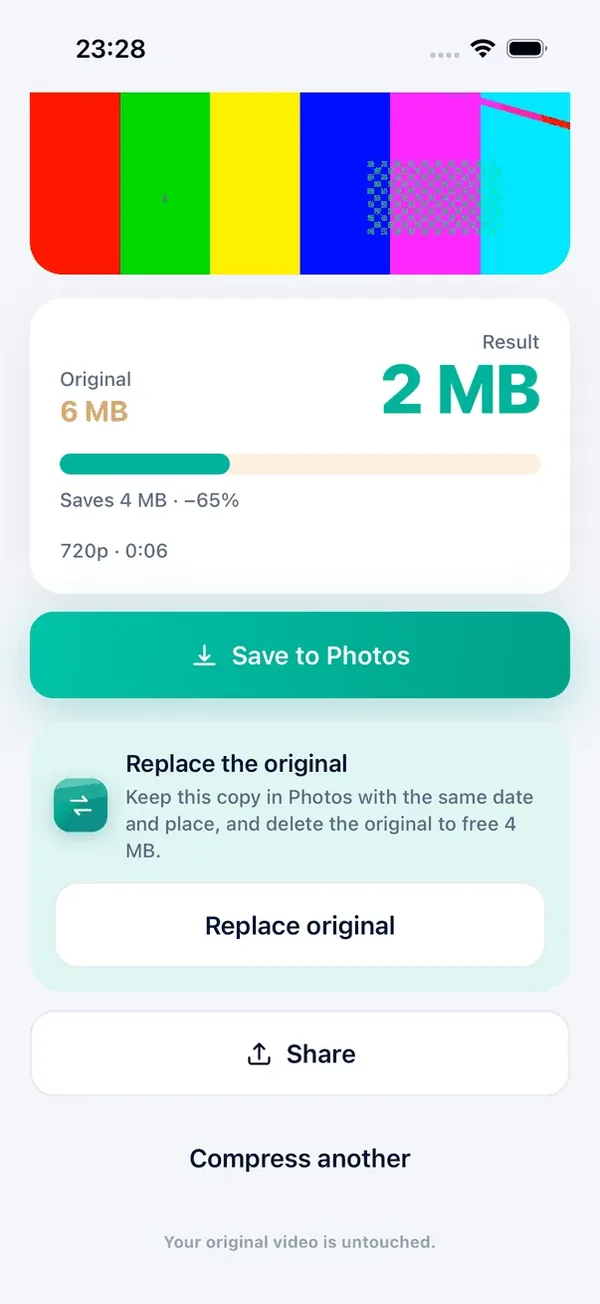
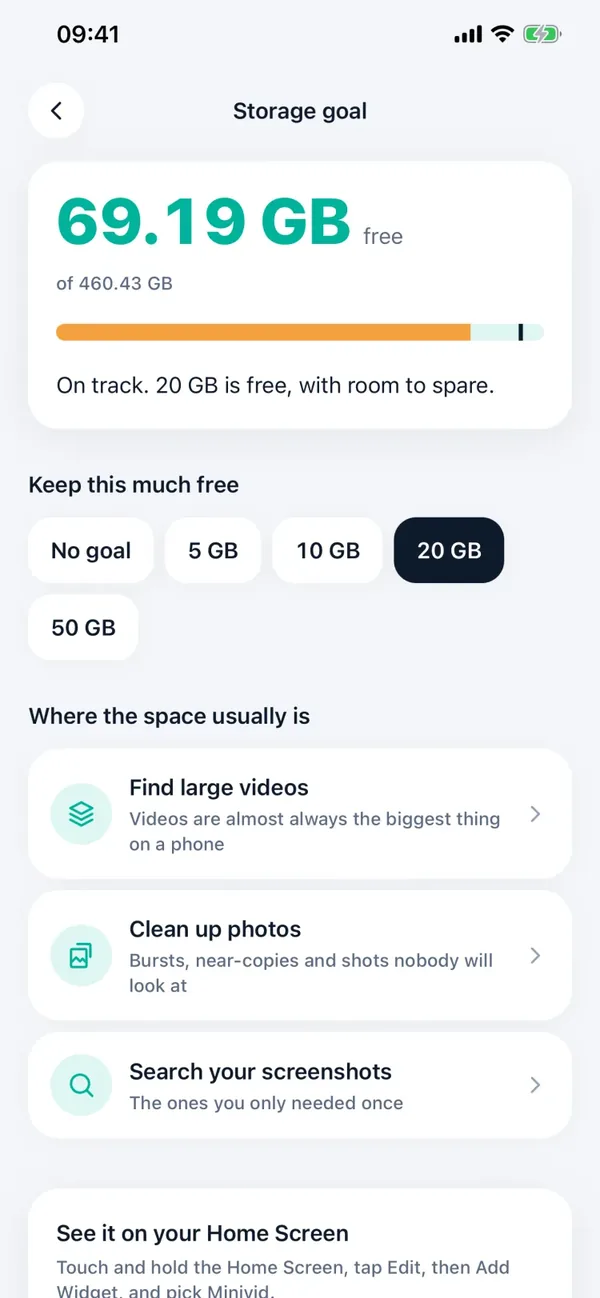
Compress one, check it, then tap Replace original: the small copy is saved to Photos with the original’s date and place, so it stays in the same spot in your timeline, and iOS asks you before the big one is deleted. Minivid then reminds you that the space only comes back once Recently Deleted is emptied, and opens Photos for you. It also groups near-duplicate photos, finds blurry and dark shots, and lets you set a storage goal to see whether you are on track.
Want to know the size before you compress?
Minivid compresses video on your iPhone and shows the final size before it starts. Your videos are never uploaded.