How to find and delete duplicate photos on iPhone
Published 1 October 2026 · 6 min read
On iOS 16 and later, the Photos app finds exact duplicates for you: open Albums, scroll to Utilities, tap Duplicates, and use Merge to keep one best copy of each set. It does not catch near-duplicates — ten almost identical shots of the same moment — so those you still review yourself.
This guide covers the built-in Duplicates album, how Merge decides what to keep, how to thin out bursts and similar shots by hand, and how to make sure the space is actually freed.
Where are duplicate photos on iPhone?
- 1Open the Photos app.
- 2Go to Albums and scroll down to Utilities (on newer iOS versions, scroll down the library to Utilities).
- 3Tap Duplicates.
If you do not see a Duplicates album, either your iPhone is on iOS 15 or earlier, or Photos has not found any duplicates yet. Detection runs in the background — often while the iPhone is locked and charging — so on a large library that has just been restored it can take a while before the album appears.
What does Merge do, and is it safe?
The Duplicates album shows sets of photos and videos that iOS considers the same picture: exact copies, and copies that differ only in file format or resolution, such as a photo saved again from a chat app.
When you tap Merge on a set, Photos keeps one version — the highest-quality one — and combines the relevant information from the others, such as captions, keywords and favourites, into it. The other copies are moved to Recently Deleted.
Because the removed copies sit in Recently Deleted for 30 days, a Merge you regret can be undone from there during that time.
How do I merge all duplicates at once?
- 1In the Duplicates album, tap Select at the top right.
- 2Tap Select All (or pick individual sets).
- 3Tap Merge at the bottom and confirm.
On a big library it is worth scrolling through the sets first. The detection is good, but a quick look costs a minute and catches the occasional case where two copies are not what you expected, such as an edited and an unedited version you wanted to keep separately.
Why are some obvious duplicates not in the album?
The Duplicates album looks for the same picture. It does not look for similar pictures. These are usually left out:
- Several shots of the same scene taken a second apart.
- Bursts, which iOS stores as a group and shows as one item until you open it.
- A photo and a screenshot of that photo.
- Photos with different edits or crops.
These near-duplicates are often where most of the wasted space is, because people take five shots to get one good one and keep all five.
How do I clean up near-duplicates and bursts by hand?
For similar shots:
- 1In the library, pinch to zoom in until a day’s photos are shown larger, so you can compare them side by side.
- 2Tap Select and tap the weaker shots of each moment: closed eyes, motion blur, a stranger walking through.
- 3Tap the trash button and confirm.
For bursts:
- 1Find them under Albums › Media Types › Bursts.
- 2Open a burst and tap Select at the bottom.
- 3Tick the frames you want to keep and tap Done, then choose Keep Only Favorites. The rest of the burst is deleted.
While you are there, Albums › Media Types also has Screenshots and Screen Recordings, which often hold old images nobody needs.
I deleted duplicates — why is my storage the same?
Everything you delete or merge in Photos goes to Recently Deleted and keeps using space for 30 days. To get it back now:
- 1In Photos, open Albums › Utilities › Recently Deleted and unlock it.
- 2Tap Select, then Delete All — once you are sure nothing there is needed.
If you use iCloud Photos, deleting also removes the items from iCloud and your other devices, and the iCloud space comes back at the same time.
Where does Minivid help?
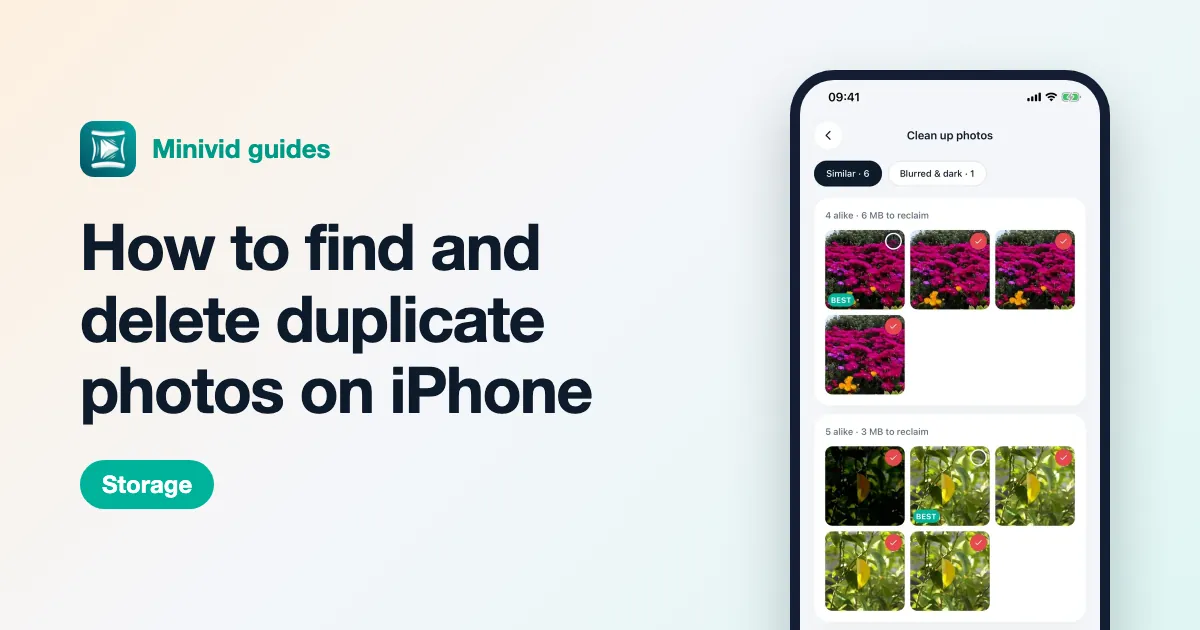
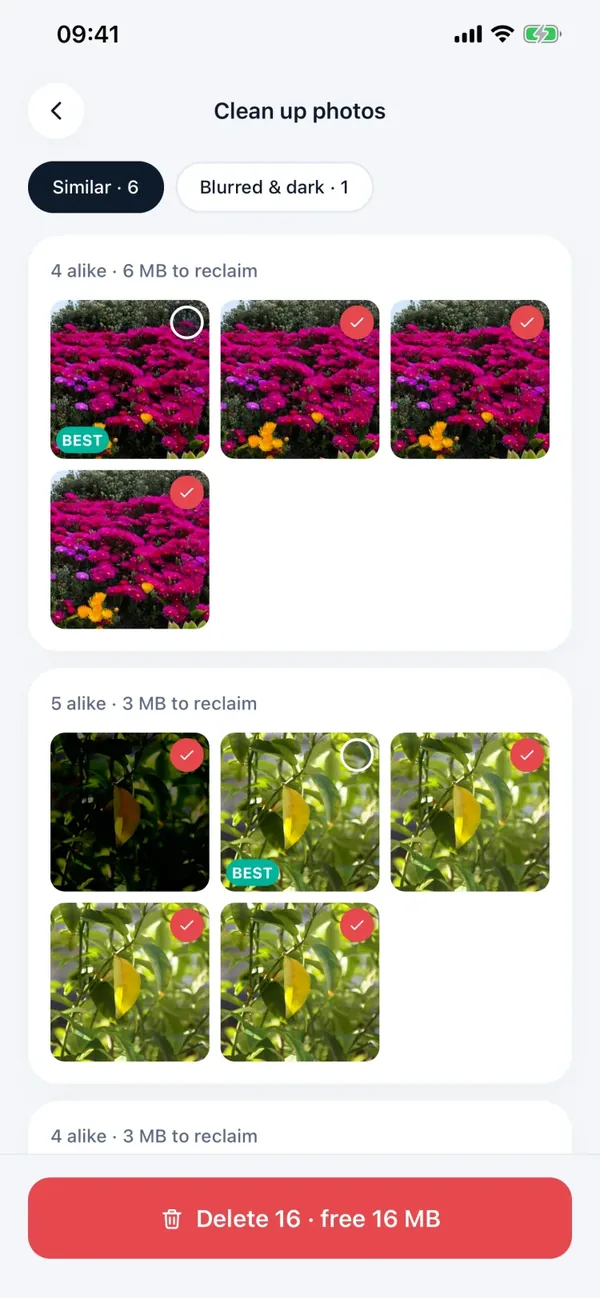
Minivid’s photo cleanup goes after the part the Duplicates album leaves out. It groups near-identical photos — the five shots of the same moment — and marks the sharpest one Best, so clearing a set is one tap. A second tab collects blurred, dark and blown-out shots.
Nothing is deleted until you confirm, and deleted photos go to Recently Deleted like anywhere else in iOS, so you keep the 30-day safety net. The analysis runs on your iPhone; your photos are never uploaded. It is a good companion to the built-in Merge, not a replacement: use Merge for exact copies, then Minivid for the similar shots.
Want to know the size before you compress?
Minivid compresses video on your iPhone and shows the final size before it starts. Your videos are never uploaded.