iPhone video for online sellers: film, trim and send product clips that load fast
Published 1 October 2026 · 7 min read
For selling online, short and light beats long and heavy: film 15–60 second product clips at 1080p, cut the best minute out of each livestream instead of sending the whole recording, and make each clip small enough to play straight in the customer’s chat. Then clear the raw recordings off the phone every week, before they fill it.
This guide walks through that workflow with the tools already on the iPhone, and notes where an app saves time. Platform rules change often, so check each marketplace’s seller centre for its current video requirements before you upload.
How should I set up the iPhone camera for product videos?
Product clips are watched on phones, usually muted, often on a slow connection. You do not need 4K for that.
- 1Open Settings › Camera › Record Video and choose 1080p at 30 fps. It looks sharp on any phone and uses a fraction of the space of 4K.
- 2In Settings › Camera › Formats, High Efficiency (HEVC) makes smaller files. If a platform or an older computer refuses them, switch to Most Compatible.
- 3Film near a window or under a bright, even light, and lock focus and exposure by pressing and holding on the product until AE/AF Lock appears.
- 4Keep each clip short and about one thing: the product turning, the texture up close, the size next to a hand, the product in use.
Short clips are easier to send, easier to reuse and easier to delete later than one long take.
How do I cut highlights out of a long livestream?
A livestream recording can run for an hour or more, and customers will not scroll through it. Cut out the part where you show the item they asked about.
- 1Open the recording in Photos and tap Edit.
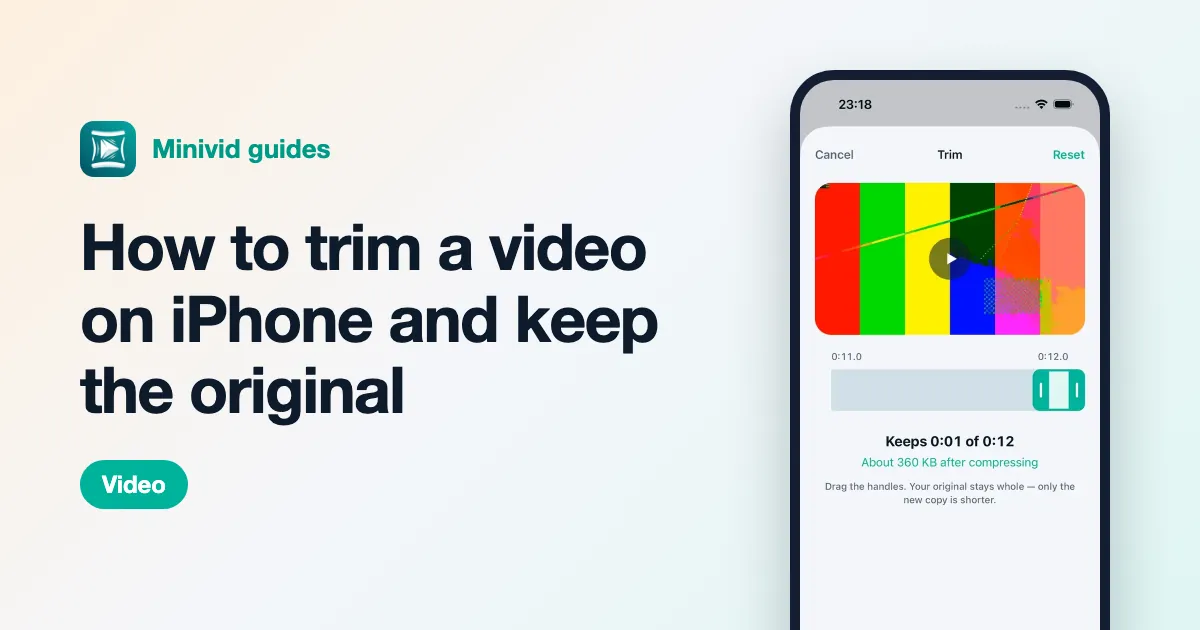
- 2Drag the yellow handles at both ends of the timeline to the minute you want. Press and hold a handle to see the frames in more detail.
- 3Tap Done, then Save Video as New Clip. The full recording stays untouched, so you can cut another highlight for the next customer.
Repeat for each product you showed. A one-minute highlight is a small fraction of the size of the full recording, which matters more than any compression setting.
How do I send a product clip to a customer on Zalo or Messenger?
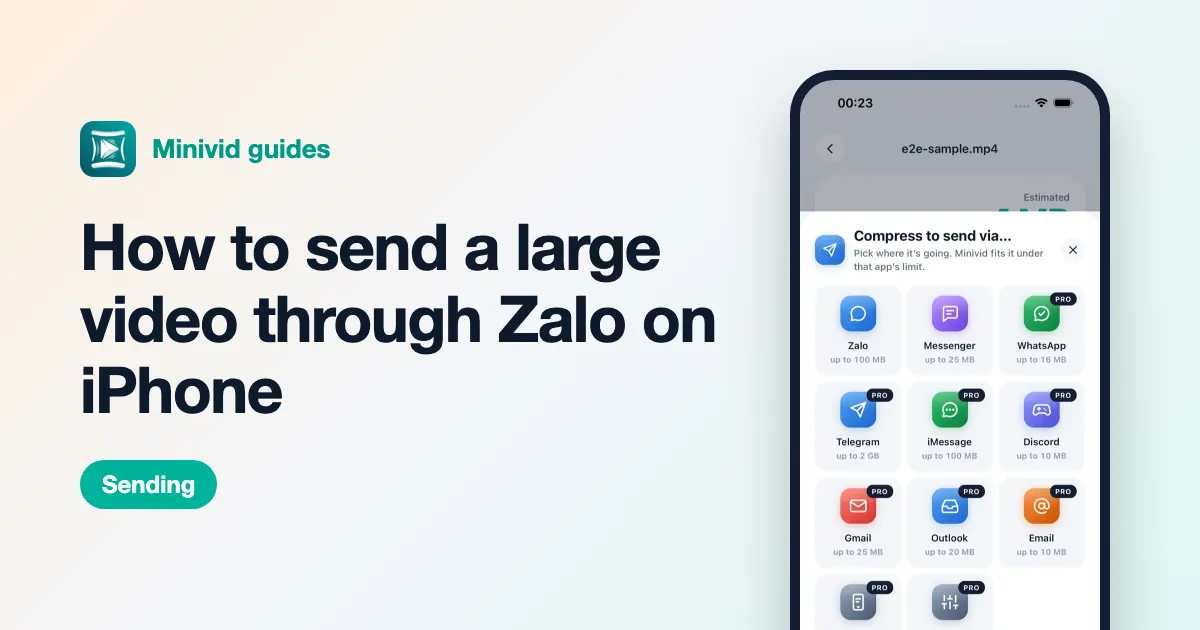
Chat apps take video up to a limit, and most re-compress what you send. Zalo is widely reported to accept about 100 MB per video sent in a chat; Messenger’s figure varies between accounts, so plan for the smaller one. Neither app publishes a figure you can rely on for good.
- Under the limit: send it as a normal video so it plays right in the chat.
- Over the limit: trim it first. If it is still too big, lower the resolution with the Encode Media action in Shortcuts, or Share › Options in iMovie, then check the size in Photos (tap the i button).
- Customer needs the full-quality file, for a print or an ad: send it as a file, or as an iCloud link.
For the marketplace listing itself, upload from the platform’s own seller app and follow the length, size and ratio its seller centre states at the time — those requirements change.
How do I put my shop name on a video?
A small shop name in the corner makes a clip that gets forwarded around still point back to you. iMovie can add text over a clip: add the clip to a new Movie project, select it on the timeline, tap the T (titles) button, pick a simple style, type your shop name and export.
Keep it short and away from the product itself. A watermark that covers the item is worse than none.
How do I stop livestream recordings filling up my phone?
Long recordings are the biggest thing on most sellers’ phones. Once a week:
- 1In Photos, open Albums › Media Types › Videos and look for the long ones (their duration shows on the thumbnail).
- 2Keep the highlights you cut and delete the raw recordings you no longer need, or copy them to a computer or a drive first if you must keep them.
- 3Open Albums › Recently Deleted and delete them from there too. Until you do, iOS keeps them for 30 days and the space does not come back.
Where does Minivid help?
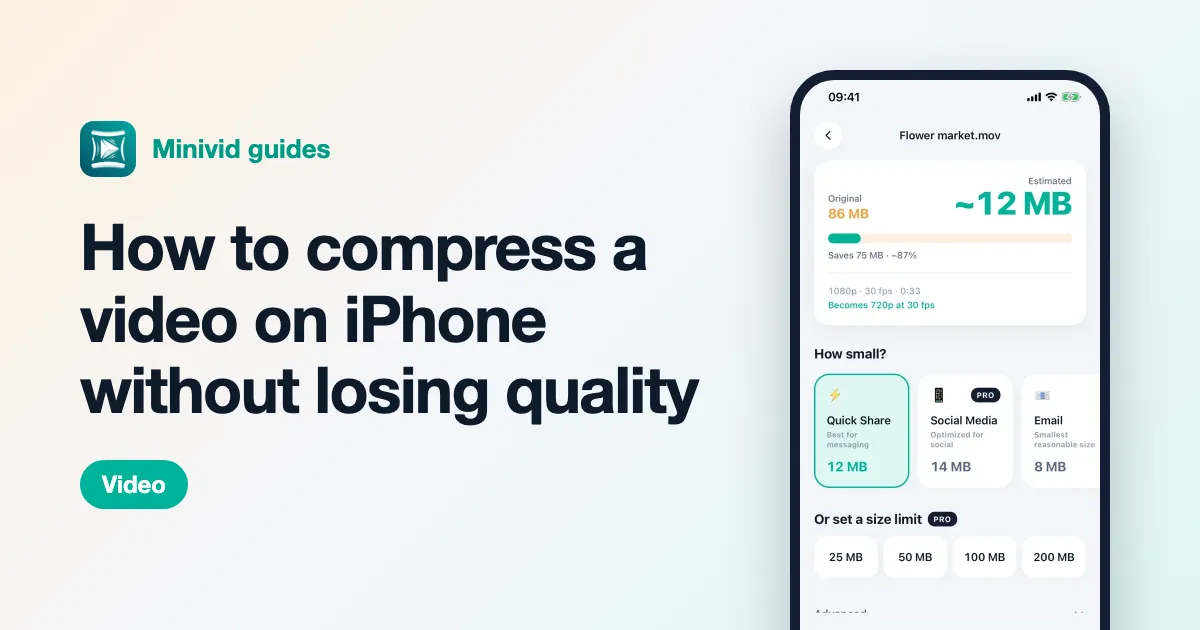
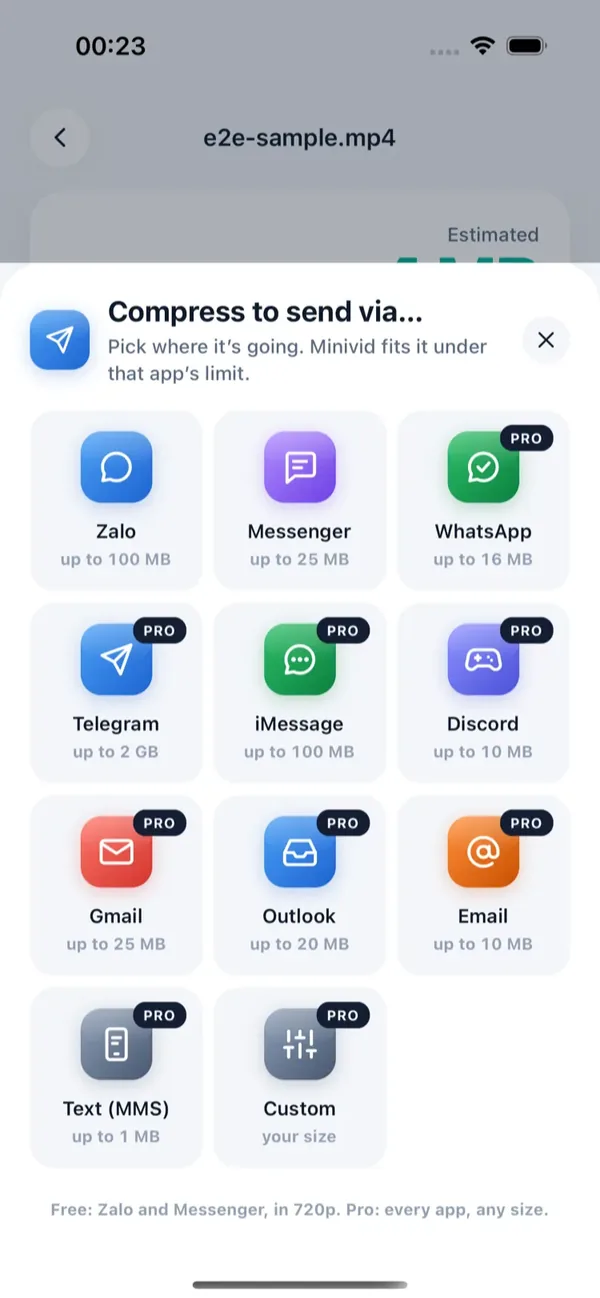
Minivid does the trimming and sizing in one place, on the iPhone. Pick a clip and you see how big it will be before anything is encoded; drag the trim handles and the number updates. Tap Send via… and choose Zalo or Messenger: Minivid fits the clip under that app’s limit and opens the share sheet, so you pick the chat and send. Both are free at 720p for videos up to 100 MB. It never signs in to Zalo or Messenger and never uploads your videos.
What does Minivid Pro add for sellers?
Pro adds a watermark — your shop name or handle stamped on every frame, in the corner you pick — plus the other send destinations, a custom size for any limit a platform gives you, 1080p and 4K output and videos over 100 MB. The Large videos screen ranks every video by size, so the old livestream recordings are at the top; with Pro you can compress a whole batch of them at once, and Replace original keeps each copy’s date and place while iOS asks before deleting the original.
Minivid does not edit, add music or post to any platform. It makes the clip lighter and sends it on; the creative part is still yours.
Want to know the size before you compress?
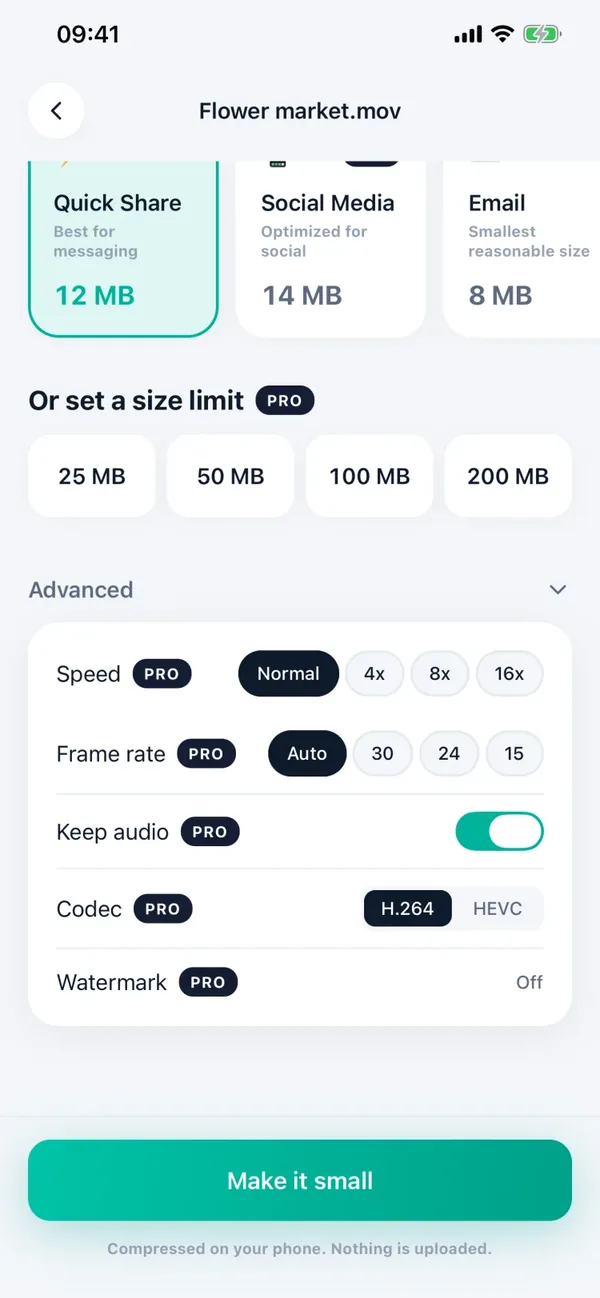
Minivid compresses video on your iPhone and shows the final size before it starts. Your videos are never uploaded.