iCloud link or compressed video: which is better for sending from iPhone?
Published 1 October 2026 · 6 min read
Send an iCloud link when the recipient needs the full-quality original or the video is far too big for any app; send a compressed file when the video should play straight in a chat or fit an email, or when you would rather it did not sit on a server. A link keeps every pixel but expires after 30 days and needs a connection to open; a compressed file is smaller and softer, but it belongs to the recipient for good.
Both are built into the iPhone or take one app, and neither is wrong. The table below sets them side by side, and the sections after it walk through each method and the cases where one clearly wins.
How do the two methods compare?
“iCloud link” here means Copy iCloud Link in Photos, plus Mail Drop, which does the same thing for attachments in Apple’s Mail app. “Compressing” means making a smaller copy of the video on the iPhone and sending that file.
| iCloud link / Mail Drop | Compressed video | |
|---|---|---|
| What you need | iCloud Photos turned on (for Copy iCloud Link) or an iCloud account in Mail (for Mail Drop) | Nothing extra; the built-in tools or an app on the phone |
| Quality the recipient gets | The original, untouched | A smaller copy at the resolution you chose |
| Size limit | Very large files; Mail Drop takes up to 5 GB | Whatever the destination allows — you make the file fit |
| How long it lasts | The link expires after 30 days | The file stays wherever the recipient saved it |
| Where the video lives | On Apple’s servers until the link expires | On your phone and the recipient’s device |
| Plays inline in a chat | No — the recipient taps a link and opens it | Yes, as a normal video message |
| Recipient has to download | Yes, the full-size file | Only the small file, which loads quickly |
| Works with no signal | No — uploading and opening both need a connection | Compressing does; sending needs a connection like any message |
| Cost | Included with iCloud | Built-in tools are free; apps vary |
How do I send a video as an iCloud link?
- 1Make sure iCloud Photos is on: Settings › your name › iCloud › Photos.
- 2In Photos, open the video and tap Share.
- 3Tap Copy iCloud Link. If the video is not in iCloud yet, Photos uploads it first, which can take a while on a slow connection.
- 4Paste the link into Zalo, Messenger, WhatsApp, an email or anywhere else that takes text.
For email from Apple’s Mail app, attach the video as usual; when Mail says it is too large, tap Use Mail Drop. The recipient gets a download link instead of an attachment.
Two things to keep in mind. The link stops working after 30 days, so anyone who wants to keep the video must save it before then. And anyone who has the link can open it, so treat it like the video itself when you forward it.
How do I compress a video to send it as a file?
Without an extra app, the iPhone can make a smaller copy in three steps:
- 1Trim it: in Photos, tap Edit, drag the yellow handles to the part that matters, then Done › Save Video as New Clip. Half the length is roughly half the size.
- 2Lower the resolution: the Encode Media action in Shortcuts, or Share › Options in iMovie, exports a 720p or 1080p copy on the phone.
- 3Check the new size in Photos (tap the i button) before you send.
The built-in tools do not tell you the size in advance, so for a strict limit — 25 MB for Gmail, for example — it can take two or three tries.
When is an iCloud link the better choice?
- The recipient will edit, print or archive the video and needs every pixel: wedding footage, a client’s raw material, anything that will be cut again.
- The file is enormous — a long 4K recording that no compression would bring under a chat app’s limit without turning it to mush.
- You are sending to several people and do not want each one to receive a separate copy.
- Both sides use Apple devices and iCloud, so opening the link is one tap.
When is compressing the better choice?
- The video should play right in the chat. A link is one more tap and a full-size download; a video message just plays.
- You are emailing it and the recipient’s mail server refuses large attachments, or they will not click a download link from an unknown address.
- You would rather the video not sit on a server at all, even for 30 days — a medical clip, a child’s school video, something private.
- The recipient is on a slow or metered connection. A 20 MB file costs them far less than a 600 MB original.
- They need the video next month too. A compressed file does not expire.
Can I use both?
Often that is the best answer. Send a compressed copy to the chat so everyone can watch it straight away, and share an iCloud link to the original with the one person who needs full quality. You keep the original on your phone either way — neither method changes it.
Where does Minivid help?
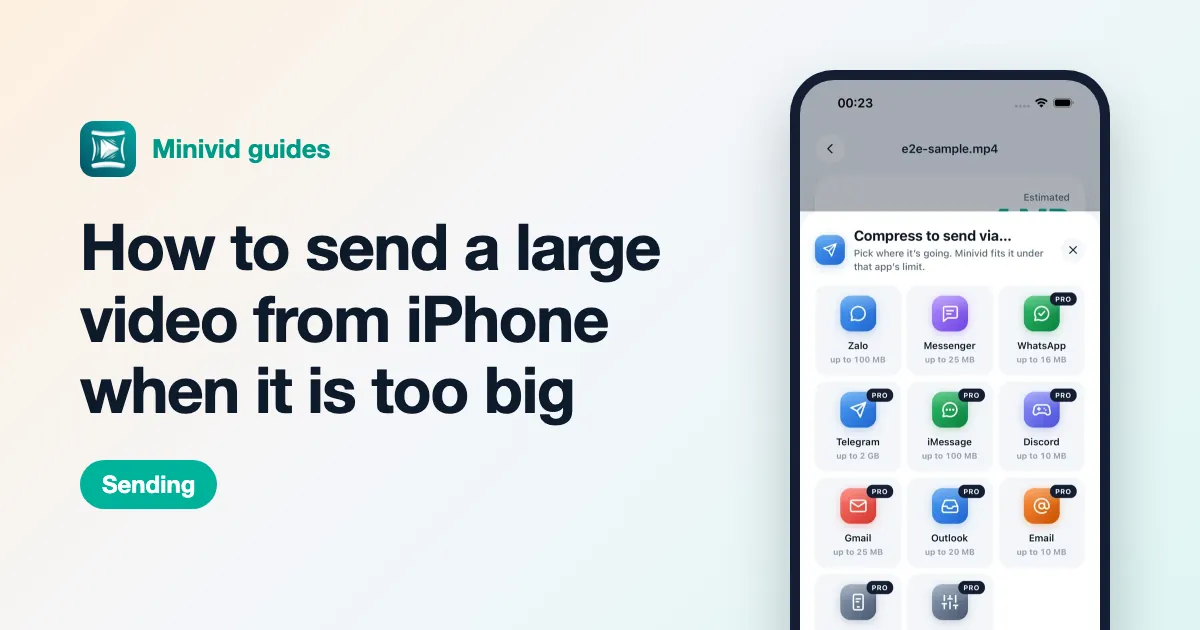
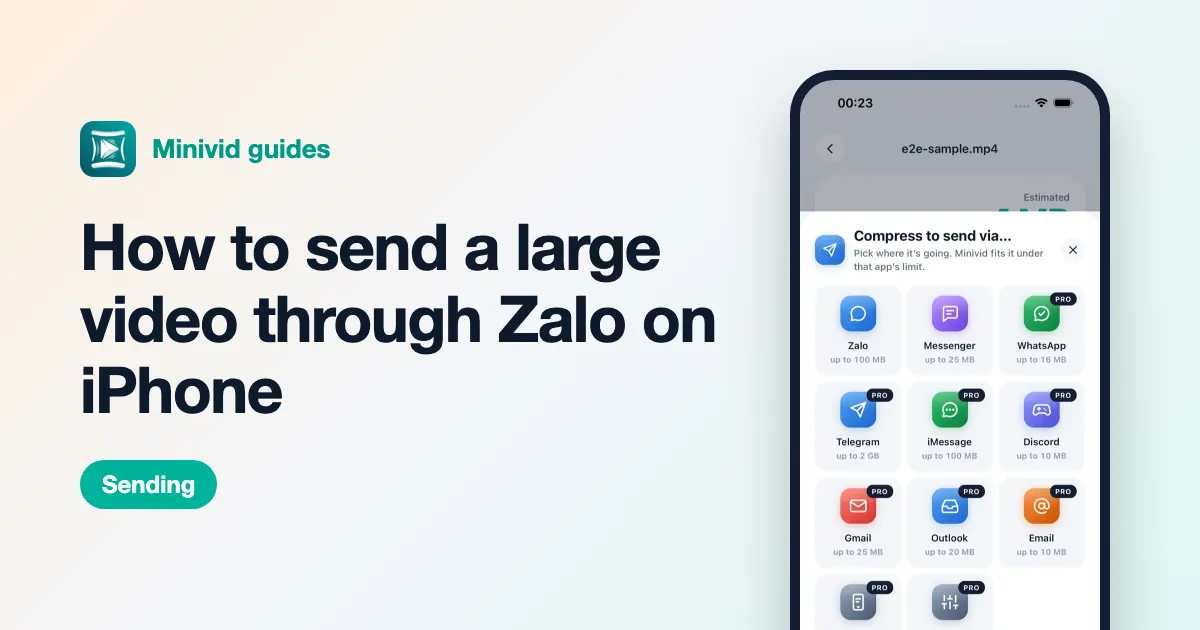
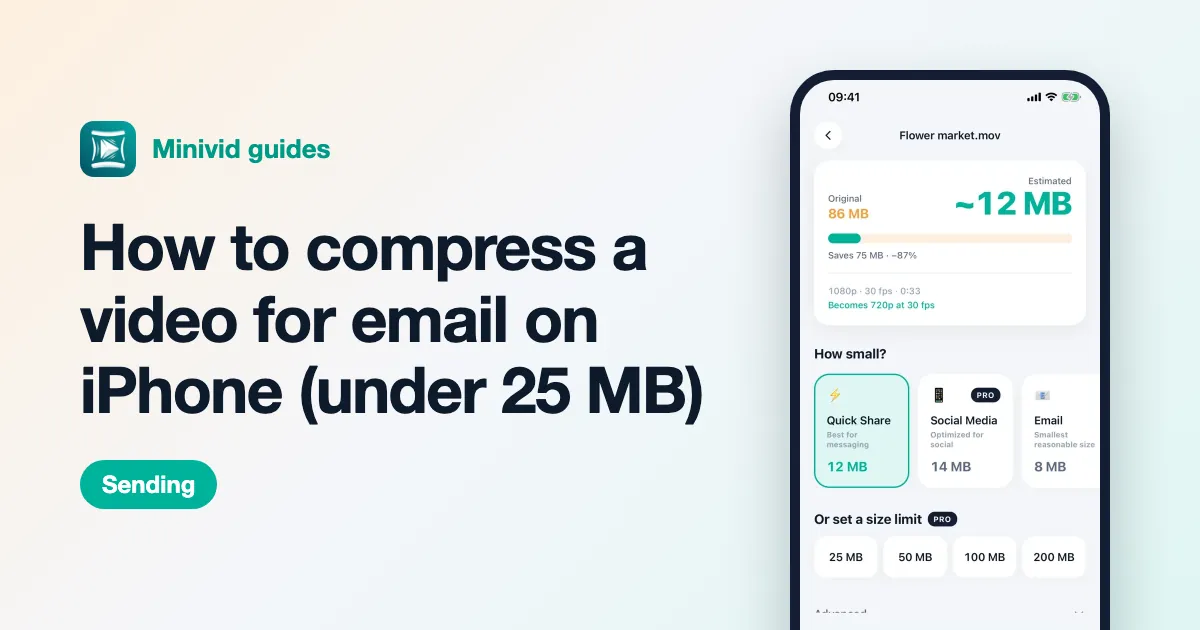
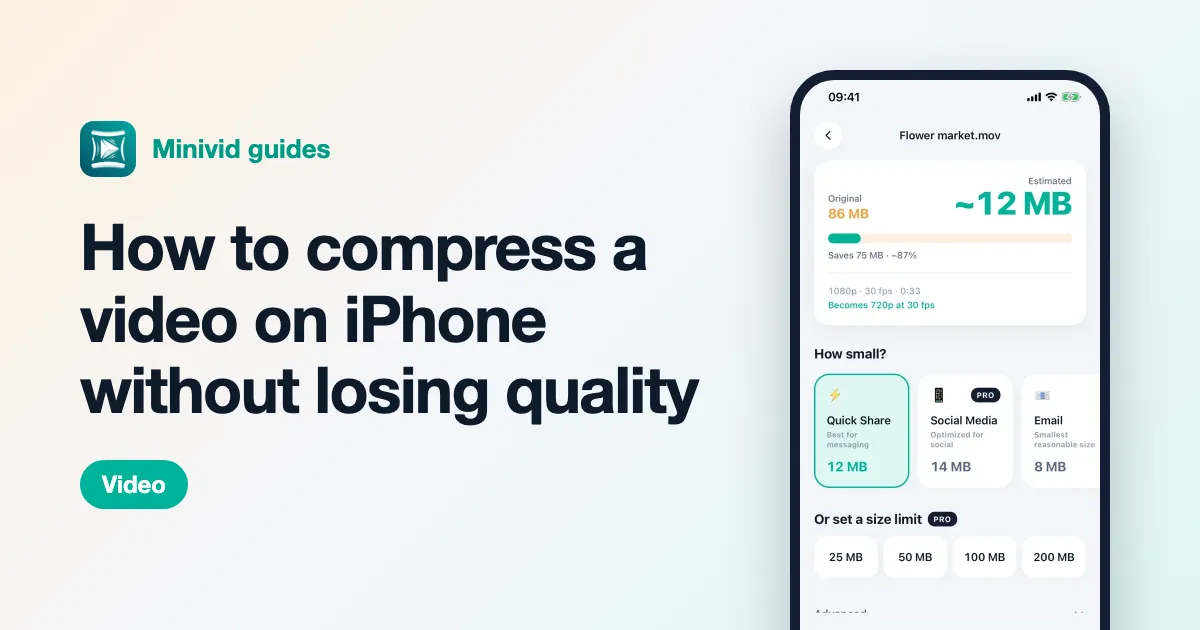
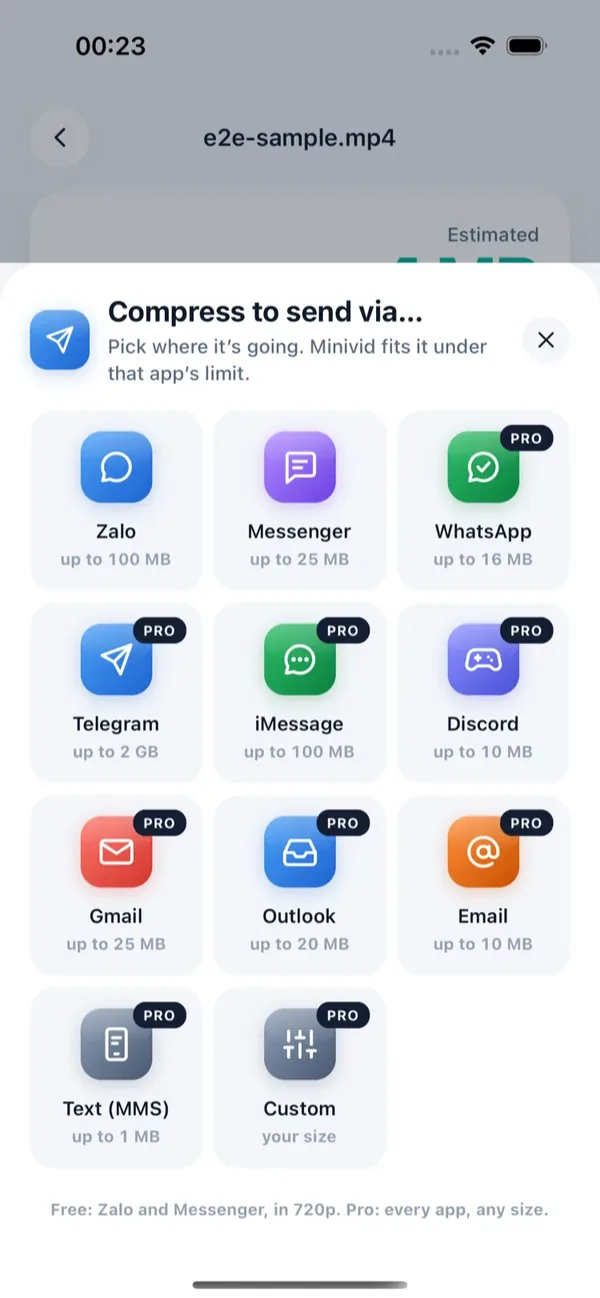
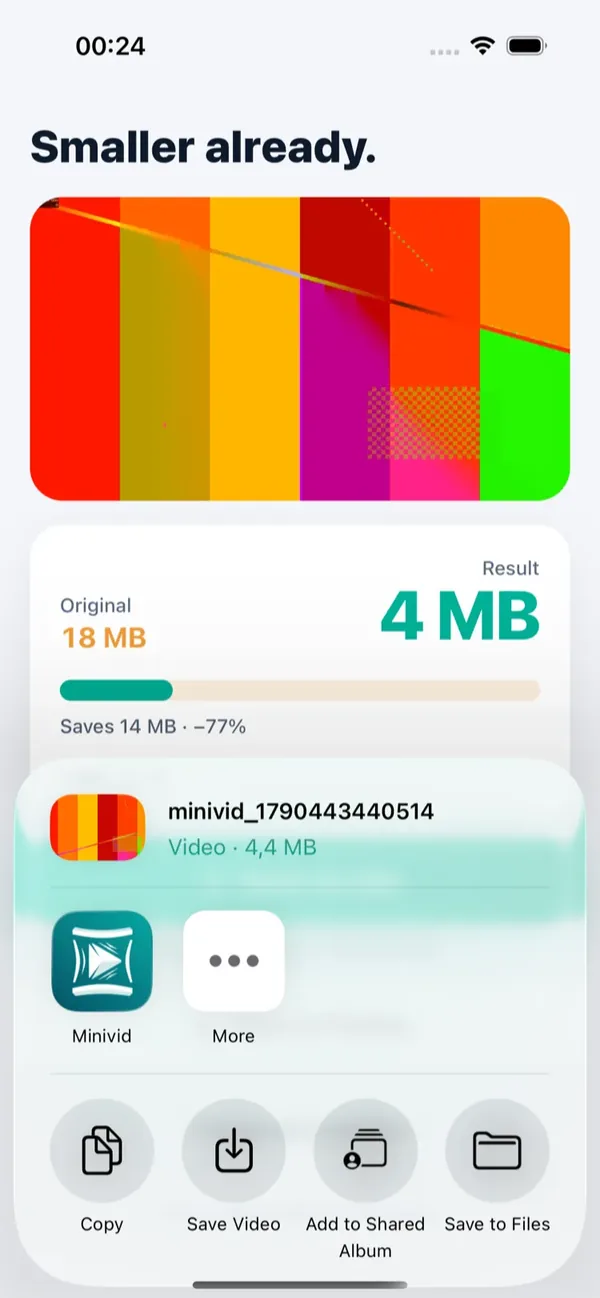
Minivid covers the compressing side, entirely on your iPhone. Pick a video and tap Send via…, then choose where it is going: Minivid shows how big the result will be before it starts, fits the video under that app’s limit, and opens the share sheet so you can send it. It never signs in to any app and never uploads the video, and compressing works in airplane mode.
What does Minivid cost for this?
Sending via Zalo and Messenger is free, at 720p, for videos up to 100 MB. WhatsApp, Gmail, Outlook, Discord, iMessage, email, MMS and a custom size of your own are part of Pro, along with larger videos and higher resolutions. The original is never changed; after compressing, you can save the copy, share it, or replace the original with it — the copy keeps the original’s date and place, and iOS asks before anything is deleted. It stays in Recently Deleted for 30 days.
If the recipient truly needs the full-quality file, Minivid will not replace an iCloud link. Use the link for that, and Minivid for everything that has to fit.
Want to know the size before you compress?
Minivid compresses video on your iPhone and shows the final size before it starts. Your videos are never uploaded.